
GPS clock-in for hourly teams
Know where your team actually clocks in.
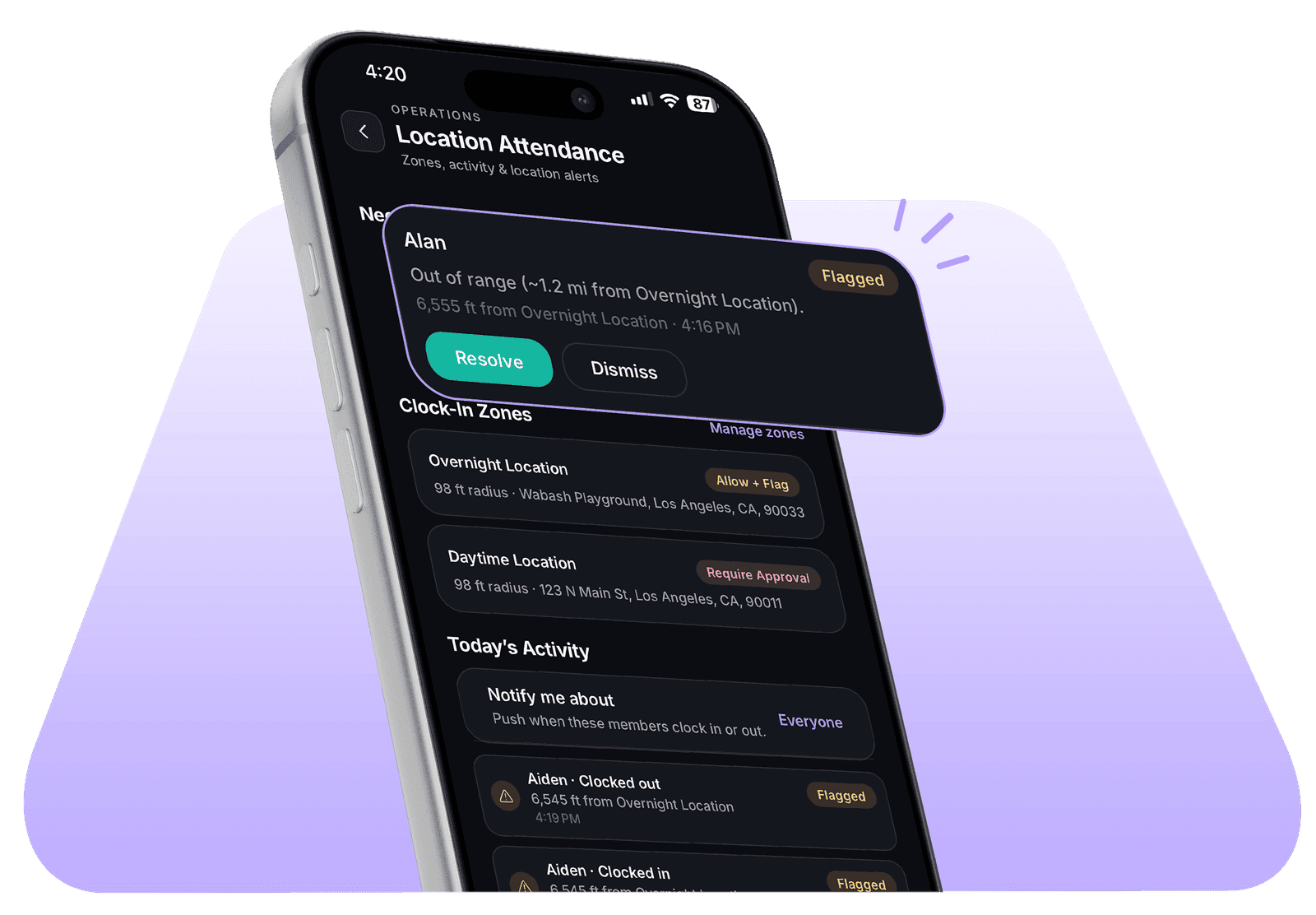
Set the job site and a radius around it. Zchedule checks every clock-in against that zone and shows you the ones that came from somewhere else: who, when, and how far away.

No credit card required.
14 days of Pro, the plan GPS clock-in is on. The trial clock starts with your first shift, not the day you sign up.
Built for teams that work off site
- Cleaning and janitorial
- Security
- Maintenance
- Landscaping
- Field service
- Multi-location retail and hospitality
Setup
One zone and one rule.
After that it runs on every punch without you touching it.
- 1
Add the site
Type the address. Zchedule drops a pin on it, and you choose whether the zone applies to everyone or only to certain people.
- 2
Pick the radius
50, 100, 250 or 500 feet, or a number you type in. You also pick how strict the zone is, from recording the location to refusing the punch outright.
- 3
Out-of-zone punches come to you
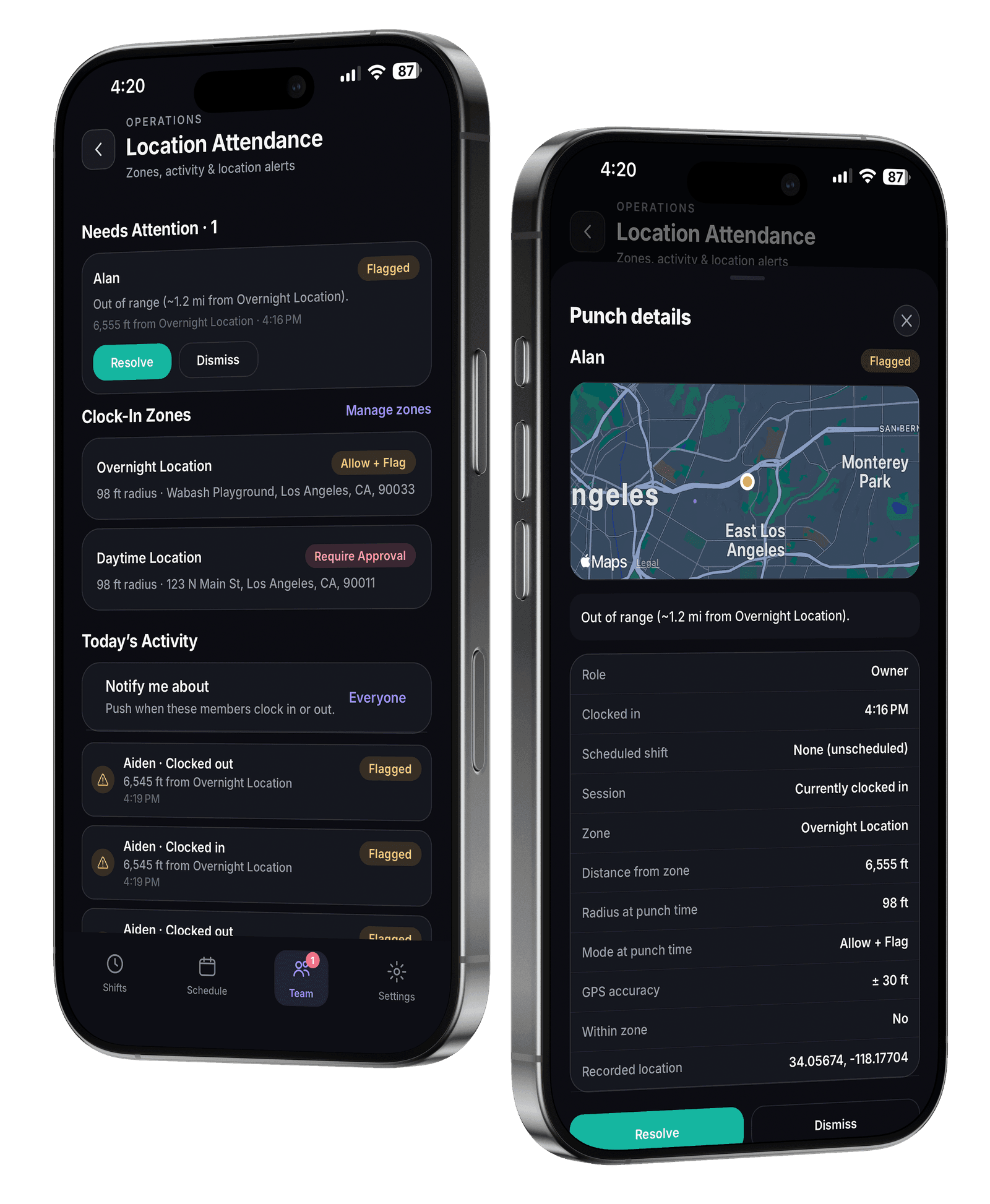
They land on your dashboard with the site, the distance, and the spot on the map. You resolve them or dismiss them.
Your side of it
See when a clock-in doesn't match the job site.
Every punch lands in one list with its location attached. The ones from outside the zone are marked with the distance.
Today's activity
- DanaClocked in7:54 AMAt Downtown
- Alex MartinezClocked inFlagged8:02 AM4,180 ft from Downtown
- PriyaClocked in8:05 AMAt Downtown
- MarcusClocked out2:31 PMAt Westside
The activity list from Location Attendance, with sample punches.
- Name and time
- The employee's name and the exact punch time, on the day it happened.
- Zone and distance
- Which site it was checked against, and how far outside it they were.
- Why it flagged
- The reason in plain words, plus the GPS accuracy the reading came in at.
- Your options
- Resolve it, dismiss it, or edit the timecard.
Flagging a punch doesn't dock anyone or change their hours. Timecards stay editable, because someone's phone will eventually be dead at 6am and that shouldn't cost them paid hours.
Enforcement
Decide what happens when someone is outside the zone.
Each zone gets its own rule. A client site you're strict about and one you're relaxed about can sit on the same team.
- OffRecord location only
- The punch carries its location for the record. Nothing is flagged and nothing is stopped.
- WarnAllow, but flag out-of-range
- The clock-in goes through so nobody is stuck at the door. It shows up on your dashboard marked out of range.
- ReviewAllow, but mark for manager review
- Same as Warn, but the punch waits in a queue until you clear it. Either way the employee is already clocked in.
- BlockReject out-of-range punches
- The clock-in is refused. The employee can send you an override request, and you approve or deny it. Unanswered requests expire after 15 minutes.
Block only refuses punches made from a phone. A punch from the web or from the shared tablet at the counter gets flagged instead, because there is no phone GPS to check it against.
Multiple sites
One team. Multiple job sites.
Add a zone per site, each with its own radius, rule, and list of who it applies to.
When someone clocks in, Zchedule works out which zone they were standing in and measures against that one. A crew that moves between sites during the week doesn't need to tell it where they are.
Useful anywhere the work isn't all in one building: a second location, a cleaning route, a set of client sites, posts covered by different crews.
Clock-in zones
Manage zones
- DowntownWarn
250 ft radius · Everyone
- WestsideWarn
250 ft radius · Everyone
- Client site — HarborReview
500 ft radius · Crew A
- Client site — RidgewayBlock
100 ft radius · Crew B
The zone list from Location Attendance, with sample sites.
The rest of it
Zchedule also builds the schedule.
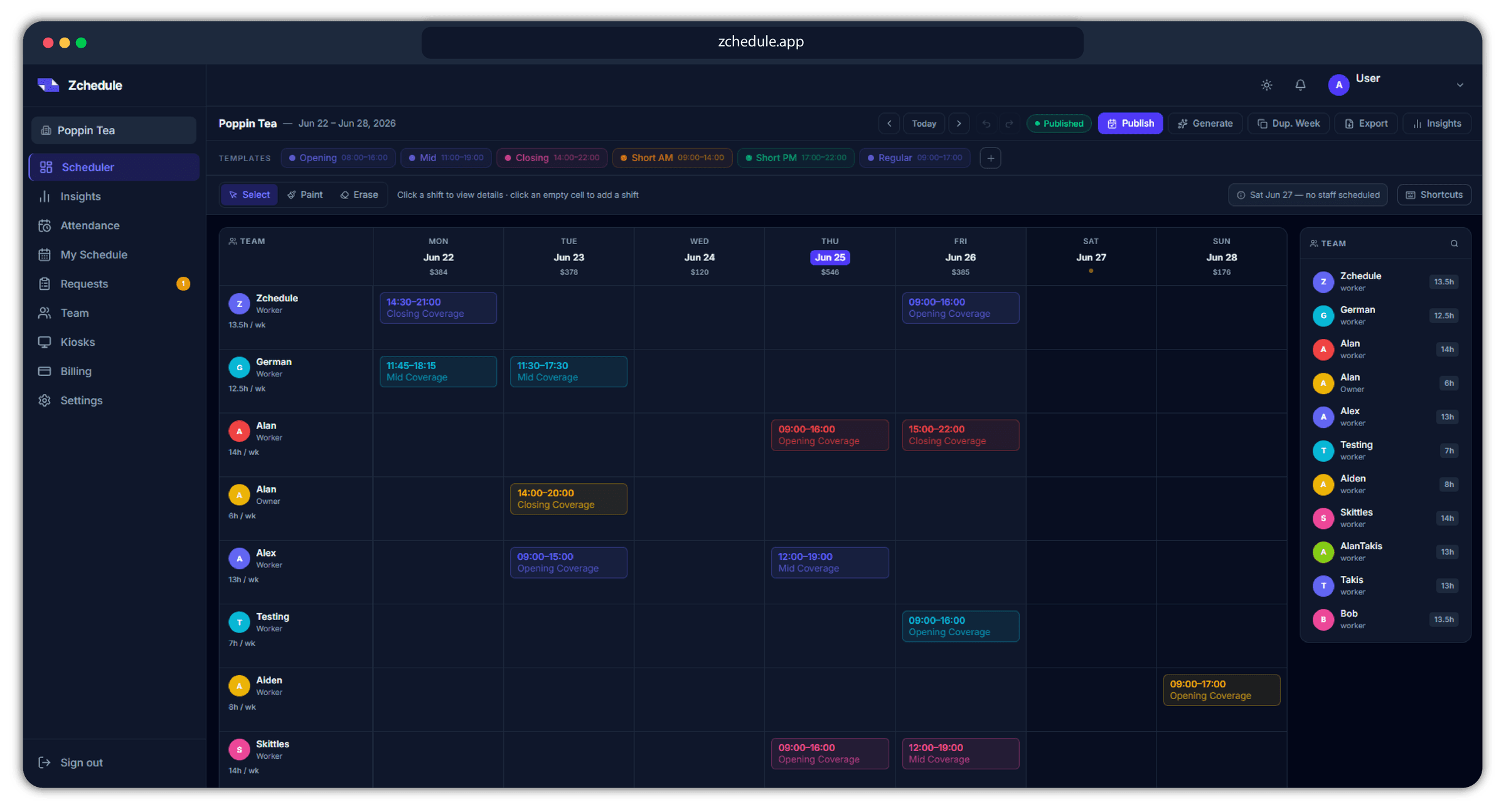
It's scheduling software that runs the time clock too, so every punch is matched to the shift it was meant for.
- The week
- Every person on a row, their shifts across the week, and the labor cost of each day.
- The check before you publish
- Zchedule checks for overtime, availability conflicts and days with nobody on them before your staff sees anything.
- Publishing
- Drafts stay hidden until you publish. Change one shift afterwards and only that person hears about it.
- Coverage and swaps
- Open shifts get claimed by whoever can take them. Swaps come to you as one approval.
Built for restaurants, coffee shops and any team where somebody opens and somebody closes. GPS zones are one part of the time clock; plans and the free tier are on the pricing page.
For the person clocking in
Your crew presses one button.
Nobody on your team has to understand a geofence. The app tells them plainly if the punch landed outside the zone.
- Clocking in
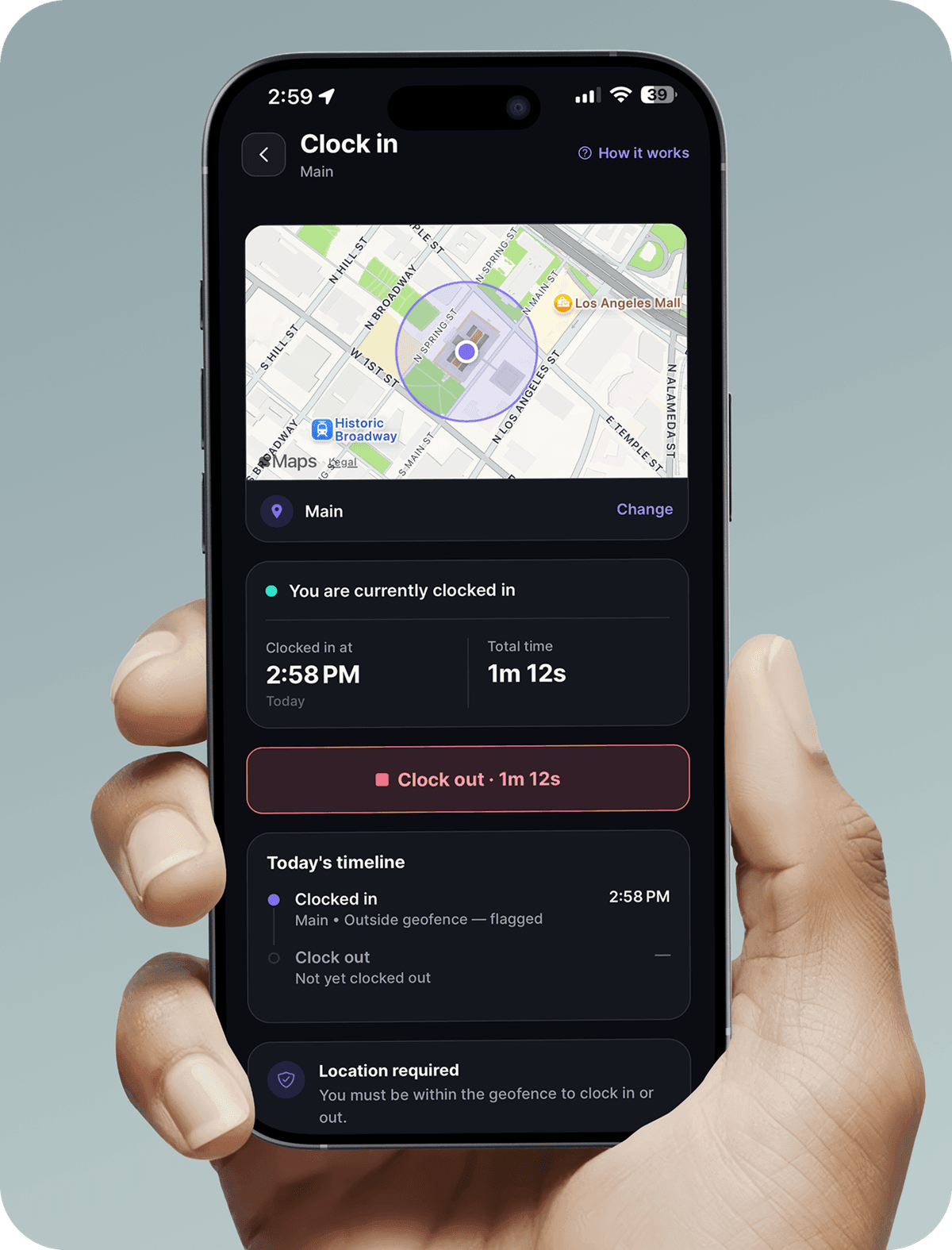
- Open the app, press clock in. The location check happens behind it, with nothing for them to set up.
- They can see what you see
- The map shows the zone and where they are in it, so an out-of-range punch isn't a mystery they find out about later.
- A way to say why
- If a zone is set to Block and the punch is refused, they can send you an override request instead of standing there.
- Or no phone at all
- A shared tablet on the counter with PIN punches covers anyone who doesn't want their own phone involved.
Privacy
GPS for clock-ins, not for following people around.
It's the first question your team will ask you.
- When location is read
- At clock-in, at clock-out, and if someone asks you to approve a punch a Block zone refused. Those are the moments the app reads their location.
- During a shift
- Nothing. Between a clock-in and a clock-out the app does not read or send location. There is no background tracking, no periodic check-in, and no map of where someone went.
- Off the clock
- Nothing. If someone is not clocked in, no location is recorded, including overnight and on their days off.
- What you see
- A punch, the zone it was measured against, the distance, the accuracy, and a point on a map. That is the whole record, and it is kept with the timecard for as long as the team keeps its attendance history.
- Off until you turn it on
- Location is not required by default. A team with no zones runs a normal time clock, and turning geofencing on is a decision you make per zone.
- Or leave phones out of it
- On a team that punches in on the shared tablet, no personal phone is involved, so there is no phone location to read.
The full detail is in the privacy policy.
Set up your first job site.
Add a job site, invite your team, and the next clock-in arrives with its location attached. Setting up the first zone takes about as long as typing the address.
No credit card required. 14 days of Pro, starting with your first shift. After that you keep a Free plan for up to 10 people, and pay only if you want to keep Pro features like GPS clock-in.