
Time clock
Hours that line up with being at work.
Employees clock in from their phone, a browser, or a shared tablet on the counter. Every punch is matched to the shift it was meant for, checked against a GPS zone if you set one, and ends up on a timesheet you can correct and export.
Zchedule includes an employee time clock: phone and web punches, an optional GPS zone per site, a shared-tablet kiosk with PINs, attendance records kept next to the schedule, and a payroll-ready CSV export. It is part of the scheduling product, not a separate app.
Time clock is on Starter. Every new team gets 14 days of Pro, so you can try GPS zones and the kiosk too.
Updated
Three ways to punch
From the phone, from a browser, or from the counter.
Use one, or mix them: a shared tablet by the door for most people and the app for whoever is off-site.
- iPhone app
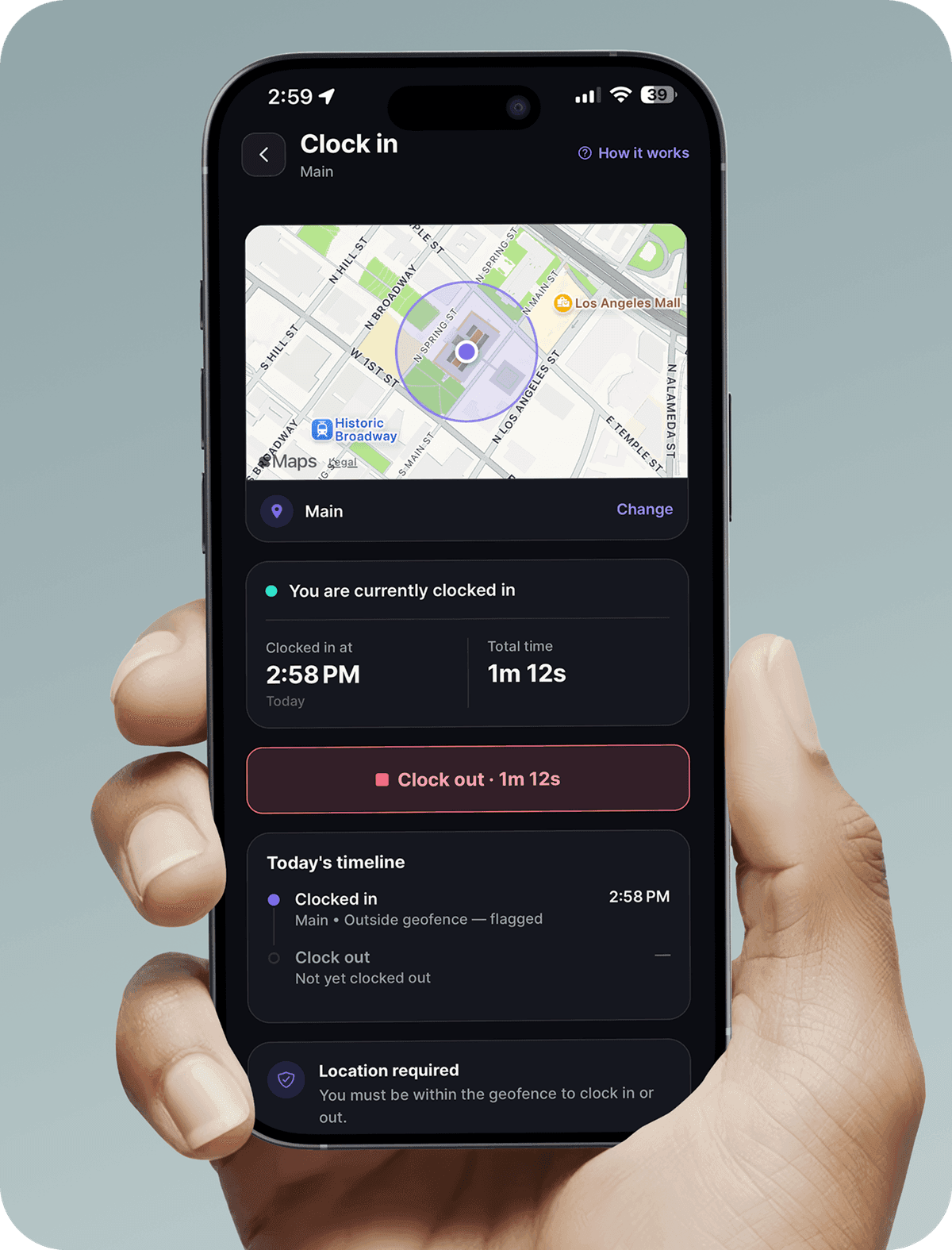
- One button on the first screen: clock in, clock out. The app reads the phone's location at the punch, and if the team has a zone for that site, the punch is checked against it. While someone is clocked in, the app can also tell you if they have left the site.
- Any browser
- The same clock-in button on the web, for employees on Android or a laptop. The browser asks for location when they press it. A browser punch outside a zone is recorded and flagged for you, never refused.
- Shared tablet (kiosk)
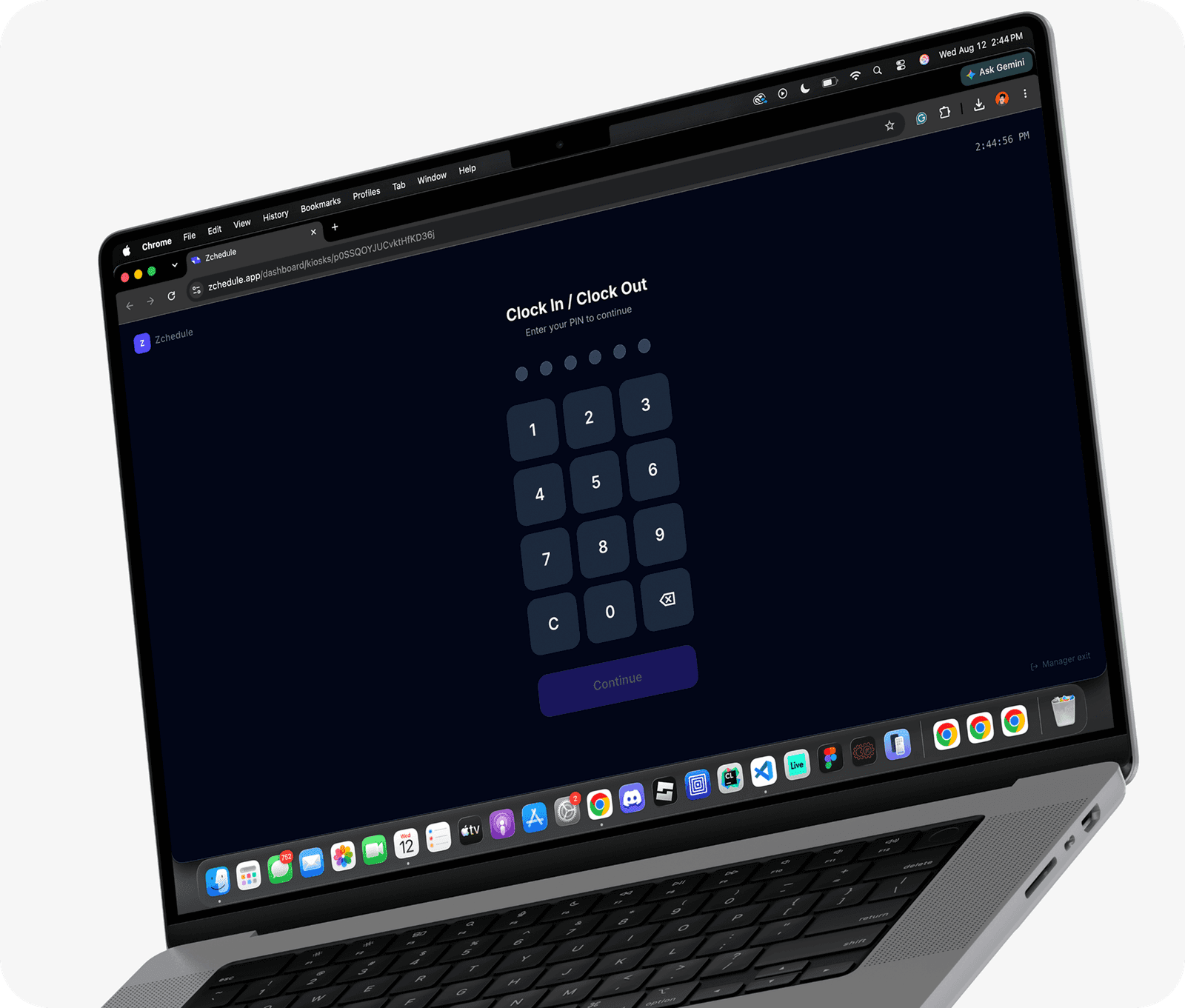
- An iPad or any tablet in kiosk mode. Each employee types their PIN, sees their name and the shift they're punching into, and confirms. Break and lunch punches happen here too. No personal phone involved.
Punches meet the schedule
Every punch is matched to a shift, so the timesheet knows what was supposed to happen.
Because the schedule and the time clock are the same product, a clock-in isn't just a timestamp. It's a timestamp next to a scheduled start.
- How a punch finds its shift
- A clock-in matches the employee's shift on that day if it lands from 15 minutes before the scheduled start to two hours after it. If there's more than one candidate, a published shift wins over a draft, then the closest start time.
- Late
- A clock-in more than 5 minutes after the scheduled start (the default grace period — you can change it) is recorded as late, with the number of minutes.
- Unscheduled
- If no shift matches, the punch is still accepted by default. It's recorded as unscheduled and flagged so you see it; a kiosk punch also raises an alert. Turn unscheduled clock-ins off if you'd rather they were refused.
- No punch at all
- By default a published shift with no clock-in is recorded as assumed worked, from the schedule, and labelled that way everywhere including the export. Switch this off and a missing punch becomes an absence instead.
- Overnight shifts
- A shift that runs past midnight still matches its punches on both sides of it, so a 10pm–6am shift is one record, not two.
- Which day
- The team's time zone decides which date a punch belongs to, so a late-evening clock-out doesn't slip onto tomorrow's sheet.
GPS clock-in zones (Pro)
Draw a zone around the site. Decide how strict it is.
Each work location gets a radius and its own rule. The full explanation, including privacy, is on the GPS clock-in page; here is the short version.
- Zones
- Type an address, pick a radius — presets of 50, 100, 250 and 500 feet — and choose whether it applies to everyone or to certain people. One team can have several sites, each with its own rule.
- Off / Warn / Review / Block
- Off records location and enforces nothing. Warn lets the punch through and flags it. Review lets it through and puts it in a queue until you clear it. Block refuses it; the employee can send you an override request that expires after 15 minutes if you don't answer.
- How “inside the zone” is decided
- A punch counts as inside when its distance from the site is within the radius plus the phone's own accuracy estimate. If the phone's fix is too coarse to trust, the punch is flagged as unverifiable rather than judged out of range. 50 feet is the smallest zone because consumer GPS can't reliably do less.
- What you see
- Out-of-zone punches land on your dashboard with the person, the site, the distance and a point on a map. You resolve or dismiss them; on a Block zone you approve or deny the request.
Shared-tablet kiosk (Pro)
A tablet on the counter that the whole team punches into.
Kiosk mode turns an iPad, or any tablet with a browser, into a clock. Nobody needs their own phone and nobody needs to log in.
- Setting one up
- You create the kiosk from the dashboard, open a one-time setup link on the tablet within 30 minutes, and it's paired. It stays paired through reloads and restarts; you re-register a tablet every 30 days.
- How employees use it
- Each person has a numeric PIN — 4 digits by default, up to 6 if you prefer. They type it, see their name and the shift they're punching into, and confirm. Clock in, start break, end break, clock out.
- Unscheduled punches
- A valid PIN with no shift to match still clocks the person in. The screen says so, the record is marked unscheduled, and you get an alert.
- Pausing and ending
- A manager PIN pauses the kiosk (for closing, say) without un-pairing it, so it resumes on the same tablet. Ending a kiosk clears it.
- Offline
- The kiosk needs a connection. If the server can't be reached it shows a connection screen with a retry button instead of accepting punches it can't record.
- No phone location
- A kiosk punch involves no personal phone, so there is no phone location to read. GPS zones apply to app and browser punches only.
Attendance
One screen for today's punches, and a list of the ones that need you.
Attendance shows who is clocked in, who is late, who never showed, and every punch that was flagged — with the reason.
- What gets flagged
- A punch outside its zone, a location signal too weak to verify, a location that looks spoofed, a clock-in with no scheduled shift, and — while someone is clocked in — leaving the site for longer than the away threshold (15 minutes by default).
- Review queue
- Flags from a Review-mode zone wait in a queue until you clear them; the employee is already clocked in. Override requests from a Block zone wait for your yes or no while the employee is not.
- Correcting a record
- Managers can correct a punch time, fill in a missed clock-out, fix a lunch, mark an absence or void a record, within an edit window of 14 days by default. Every change keeps a before-and-after history. Someone's phone will eventually be dead at 6am, and the timesheet should still be right.
- Overtime
- Worked hours over 8 in a day or 40 in a week count as overtime by default; both thresholds are adjustable in Attendance settings. Unpaid break minutes are deducted from paid hours.
Payroll export
A CSV your payroll system can read. Nothing more, on purpose.
Zchedule doesn't run payroll and doesn't sync with payroll providers. It gives you the hours in a file that every payroll system already imports.
- What's in the file
- One row per attendance record: employee, date, scheduled start and end, actual start and end, clock in, lunch start, lunch end, clock out, break minutes, unpaid break minutes, worked hours, paid hours, overtime hours, and a note.
- Punches vs. assumptions
- Every row says where it came from — a kiosk, the app, the web, or the schedule — and rows that came from the schedule have their punch columns left empty, so nothing in the file implies someone punched when they didn't.
Two mornings
What happens on an ordinary day, and on a flagged one.
- 1.7:52 — Jordan opens the app on the way in and taps Clock in. The phone reports a position 40 feet from the café's pin; the café zone is 100 feet with Warn.
- 2.The punch matches Jordan's 8:00 shift (it's inside the 15-minutes-early window) and is inside the zone, so it's recorded as on time with no flag.
- 3.2:03 — Jordan taps Clock out. The record shows 6 h 11 m worked against a 6-hour shift.
Result: An ordinary row on the timesheet: source “Mobile”, on time, 6.18 worked hours, nothing for you to look at.
Names and times are illustrative; the rules are the product's.
- 1.8:09 — Sam taps Clock in from 0.6 miles away. The café zone is 100 feet with Warn.
- 2.The punch goes through — Sam is clocked in — but it's recorded as late by 4 minutes past the 5-minute grace period and flagged out of zone, with the distance.
- 3.An alert appears on your Attendance screen: Sam, 0.6 mi from Café, 8:09. You see the point on a map, ask Sam about it, and resolve or dismiss the alert. If the zone had been Block, the punch would have been refused and Sam could have sent you an override request instead.
Result: A late, out-of-zone row you were told about the moment it happened, and a decision you make once.
Names and times are illustrative; the rules are the product's.
Privacy
Location is read at a punch, checked during a shift, and never off the clock.
- At a punch
- The app reads location at clock-in, at clock-out, and when someone asks you to approve a punch a Block zone refused.
- During a shift
- While someone is clocked in, the app can check whether they've left the site and tell you. It stops at clock-out.
- Off the clock
- Nothing. If someone isn't clocked in, no location is recorded — overnight, on days off, ever.
Location is off by default: a team with no zones runs a normal time clock. Kiosk punches never involve a phone. The detail is on the GPS clock-in page and in the privacy policy.
Plans
Which plan you need.
Which plan
- Time clock and attendance
- Starter — $19.99/month per team
- Labor cost, coverage and attendance reporting
- Starter — $19.99/month per team
- GPS clock-in zones
- Pro — $39.99/month per team
- Shared-tablet kiosk clock-in
- Pro — $39.99/month per team
Every new team starts with 14 days of Pro-level access, so you can try the zones and the kiosk before choosing. Prices are per team; adding people doesn't change them.
FAQ
Questions worth answering up front.
Starter ($19.99 a month per team, up to 30 people) includes phone and web clock-in, attendance records, timesheets and the payroll CSV. GPS clock-in zones and the shared-tablet kiosk are Pro ($39.99 a month, unlimited people). Every new team gets 14 days of Pro to try all of it.
Only if you let them. With no clock-in zones, a punch is accepted from anywhere and recorded with its location. Add a zone around the workplace and choose how strict it is: Warn and Review let the punch through but flag it for you; Block refuses it and lets the employee ask you to approve it. Punches made from a web browser are always flagged rather than refused, because a browser can't be monitored the way the app can.
By default a published shift with no punch is recorded as assumed worked, marked as coming from the schedule rather than from a punch, so the timesheet is still usable. You can correct any record afterwards, or turn this off so a missing punch is treated as an absence instead.
Yes, by default. The punch is accepted, recorded as unscheduled and flagged on your attendance screen; a kiosk punch also raises an alert. You can switch unscheduled clock-ins off in Attendance settings.
No. It exports a CSV with each person's scheduled and actual times, worked, paid and overtime hours, break minutes and whether the row came from a punch or from the schedule. You import that into whatever runs your payroll. There is no payroll processing and no direct integration with payroll providers.
No. They can clock in from the app, from any browser on any phone, or from a shared tablet with a PIN. GPS enforcement and the away-from-site check need the app; a browser punch is recorded and flagged, never refused.
No. A punch is only recorded once the server confirms it. If the tablet loses its connection the kiosk shows a connection screen with a retry button rather than accepting punches it can't save.
Related
- GPS clock-in, in full
Zones, the four modes, multi-site teams, what employees see, and privacy.
- Pricing
What Starter and Pro cost, and what a team of 6, 15, 25 or 40 pays.
- Restaurants
A kiosk by the pass, GPS for the delivery driver, and call-outs handled.
- Coffee shops
Openers, closers and a schedule built around availability.
- Coverage and swaps
When the person clocking in isn't the person who was scheduled.
Run the schedule and the clock in one place.
Free for up to 10 people. The time clock is on Starter, and every new team gets 14 days of Pro to try the zones and the kiosk.
No credit card. The trial starts with your first shift, not today.